
We have a User Guide in Rightmove Plus on the Property List and a Rightmove Hub video on How to add a property. Adding or editing a property listing on Rightmove depends on how you upload property's to site— either through a property software provider (datafeed) or manually through Rightmove Plus (RM+) so this FAQ details how this works for both.
- First: check how your properties are uploaded
- Mandatory fields
- Where do I upload Tenancy Fee Information?
- Why isn't my full summary description showing?
- My property summary, description and key features are missing parts?
- What specifically does Content Stripping look for?
- If you experience an error
- If you have feedback or a feature request
First: check how your properties are uploaded
- Property software (datafeed) – for example, a CRM or lettings/sales system
- Rightmove Plus (manual upload)
If you use a property software (datafeed)
- Log into your property software
- Find the property you want to update/add
- Make your changes and save them
If you’re unsure how to make changes in your software, contact your software provider directly for support.
If you upload properties manually via Rightmove Plus (RM+)
To be able to amend properties you must have 'Edit' property permissions for sales/lettings in Rightmove Plus, you will need to contact your admin if you don't have this access.
Step 1: Open your Property List
- Log into Rightmove Plus
- Go to Properties in the left‑hand menu
- Select Property List
- Menu → Properties → Property List
- Landing page → Shortcuts → Property List
Step 2: Edit an existing property
- Find the property in your list
- Click on the property address to open the property edit page
- Make your changes across the tabs:
- Basic Information
- Details
- Media
- Select Save once your changes are complete
Step 3: Add a new property (if required)
- In the Property List, click Add a property (top right)
- Choose the correct property type:
- Residential
- Commercial - only shows under the commercial search
- New homes, overseas, or build‑to‑rent (if applicable)
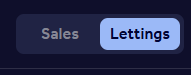
- Make sure you are adding stock to the correct business unit if you have both sales and lettings by checking the tab in the top right hand corner.
Making the property live
- Select Save as not live & Preview to check the listing
- When ready, set the status to Available
- Click Save & make live
Property Status
When editing/adding a property in Rightmove Plus as a manual loader you can choose what property status should show. Select the visibility and property status and choose 'Save', this box is found on the right hand side of the page: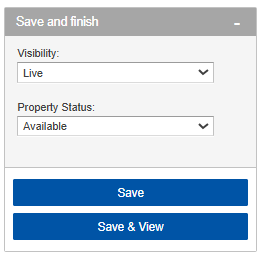
Visibility options:
- Live
- Not Live
- Removed
Property Status options vary based on sales or lettings accounts and business units:
- Available
- Let Agreed
- Sold STC
- Under Offer
- Reserved
- Sold STCM
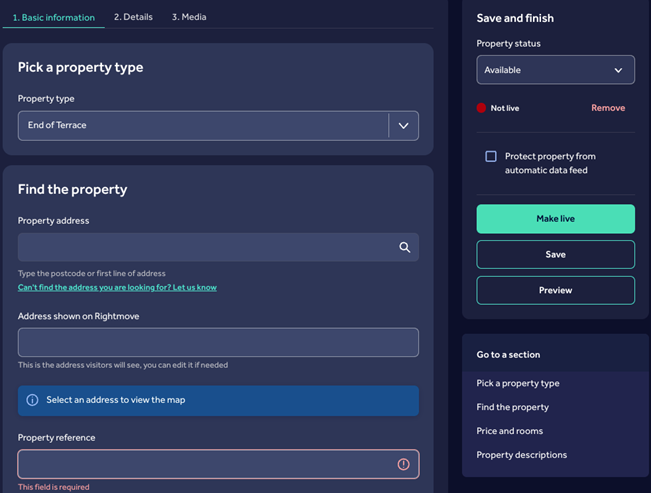
Property setup tabs explained
- Address
- Price
- Property type
- Summary description
- Full description
- Up to 10 key features
- Tenancy Fee Info (lettings only up to 4000 characters)
- Photos
- Floorplans
- Additional Media/ Virtual tours
- EPCs
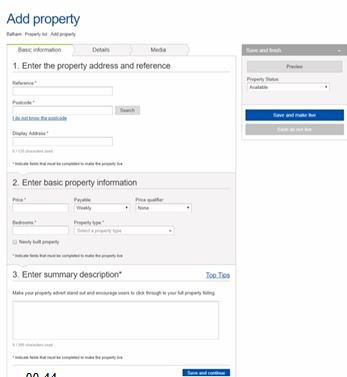
Mandatory fields
Mandatory fields are marked with an asterisk (*) in Rightmove Plus.
- Reference
- Postcode
- Display address
- Price
- Bedrooms (can be set to 0)
- Property type
- Summary description (up to 300 characters)
- Full description (up to 32,000 characters)
Where do I upload Tenancy Fee Information?
- Manual uploaders: Add this in Rightmove Plus via the Details tab
- Data feed users: Add this through your property software
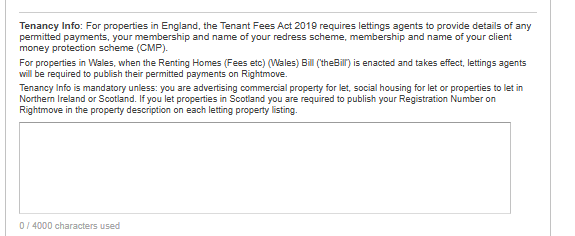 If you are unsure where to add this in your software, contact your provider for guidance.
Why isn't my full summary description showing?
Text is limited to around 3 lines on property cards.
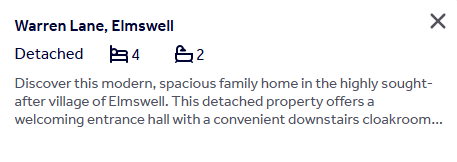 The number of characters shown varies depending on:
- Screen size
- Whether labels (for example, “New Home”) are applied
- Whether a station search is used
- Listing products such as Featured or Premium listings
| Screen width | Sidebar | No. of images | Fading/text behaviour | Address on one or two lines |
| Medium to large desktop (1240px-1399px) | Yes | 2 | Text limited to 3 lines, 167 approx (including spaces) | One line |
| Larger desktop screen (1400px>) | Yes | 2 | Text limited to 3 lines - 201 characters approx (including spaces) | One line |
| iPad/tablet landscape (1024px) | Yes | 1 | Text limited to 3 lines - 165 characters approx (including spaces) | One line |
| iPad portrait (768px) | No | 1 | Text limited to 3 lines - 204 characters approx (including spaces) | One line |
On a standard listing, if a label is applied (for instance "new home") then the text is shorter by one line.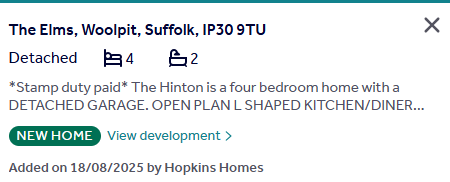
If a station search is done then the summary will be shorter by one line so we can show distance to/from station.
My property summary, description and key features are missing parts?
Whenever a property is added to Rightmove our systems will automatically check for any offensive language or security risks as set out in our technical guidelines. If this is located on the property, it will be stripped out of the descriptions.
What specifically does Content Stripping look for?
- Phone numbers
- Email addresses
- Rude or offensive language
- No DSS / No Housing benefit
- Website URLs
If you experience an error
- Check all mandatory fields are completed
- Confirm you are editing the correct business unit (sales or lettings)
- Try refreshing the Property List and logging in again
- Make a slight amendment to the listing to push through a new update
- Email: customersupport@rightmove.co.uk
- Your branch name
- Property reference
- A short description of the issue
- Screenshots (if possible)
If you have feedback or a feature request
- Email customersupport@rightmove.co.uk
- Include clear details of what you’d like improved and how it would help you