
Check the steps below if you're unable to upload a property to Rightmove because the postcode or address isn’t recognised, or if the property pin or Street View location is incorrect or not showing in searches.
- I can't upload my property due to the address/postcode
- If you use a CRM/ Software provider / Data feed
- If you manually upload properties in Rightmove Plus
- Updating Street View
- If you experience an error with adding or how a property appears on Rightmove
- Why is my property only showing when I search by postcode?
- If you experience an error
- If you have feedback or a feature request
I can't upload my property due to the address/postcode
If Rightmove does not recognise the postcode or door number, the property cannot be added until the address exists in the system.
To request a new postcode
Email customersupport@rightmove.co.uk with:
- The full address or addresses you need added
- The latitude and longitude or eastings and northings for the postcode so the location is accurate
To add or amend an address
Email customersupport@rightmove.co.uk with:
- The full address you want added or corrected
If you use a CRM/ Software provider / Data feed
- Once Rightmove has added or updated the address or postcode, you must update the property in your software
- The update will then flow through to Rightmove
- For any questions about your software, contact your software provider directly
If the pin location or coordinates are wrong, this must also be corrected through your software provider.
If you manually upload properties in Rightmove Plus
You can update the property location yourself.
- Log in to Rightmove Plus
- Go to Property List
- Select the property by clicking the address
- In Basic Information, make sure the correct address is selected
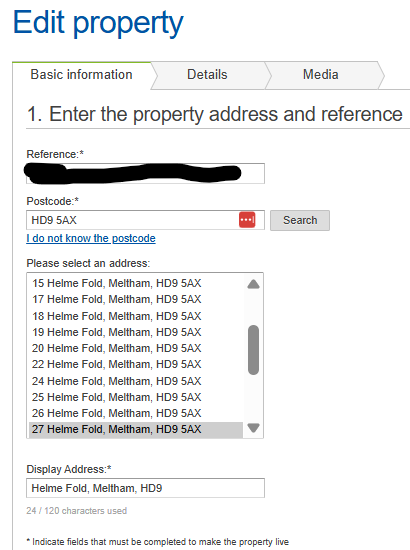
- Go to the Details tab and scroll down to Set Property Location
- Update the location by:
- Typing the correct latitude and longitude, or
- Moving the property pin to the correct position on the map
- Select Save and continue, then Save
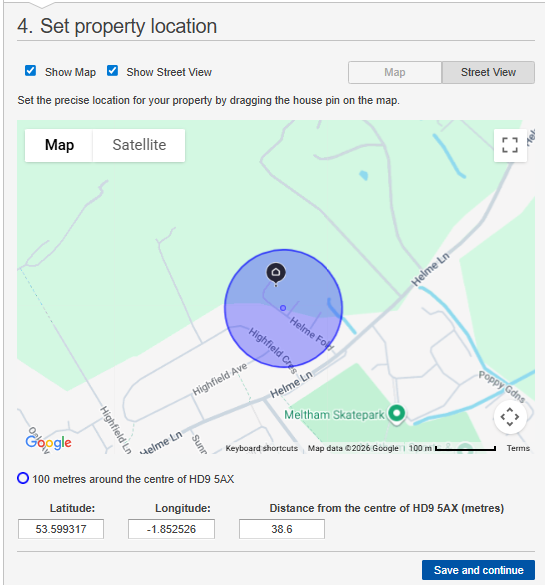
The purple dot shows the centre of the postcode. If your property pin is far from this, the coordinates may be incorrect and the property maybe showing in the wrong location on site as the pin impacts the region the property shows under as well.
Updating Street View
- Switch to Street View to view the property on Google Maps
- You can:
- Select Match with house pin, or
- Use the arrows to position Street View correctly
- Make sure you select Save and continue, then Save
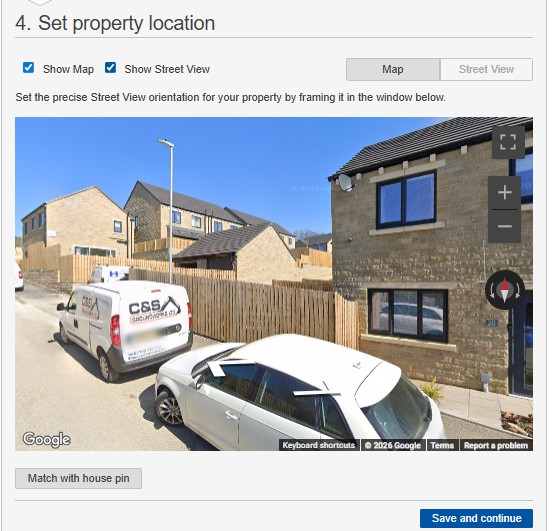
To remove Street View from the listing, email customersupport@rightmove.co.uk.
If you experience an error with adding or how a property appears on Rightmove
Before contacting support, check and confirm this with your software provided if needed:
- The postcode and address are spelled correctly
- You are using the correct upload method (software or manual)
- The coordinates are not showing far away from the postcode centre
Contact customersupport@rightmove.co.uk if:
- An address or postcode does not exist in the system
- Street View needs removing
- You can't select the correct address from the list
Include:
- Full property address
- Postcode
- Latitude and longitude (if available)
- Whether you upload via software or Rightmove Plus
Why is my property only showing when I search by postcode?
When someone searches for a location on Rightmove, results are shown based on:
- The map location (pin) of your property
- The search boundaries set for that town, village or city
If either of these is incorrect, your property may not appear in the search results.
Step 1: Check the property’s map location
The first thing to check is whether your property is plotted in the correct place on the map.
- Open the property listing
- Switch to map view
- Confirm the property pin is in the correct location
If the pin is incorrect:
- Software (datafeed) users must update the location in their property software
- Manual loaders can update the pin directly in Rightmove Plus
Step 2: Check the search boundaries
If your property is correctly plotted on the map, it may still not appear if it sits outside the current search boundaries.
- When searching on Rightmove.co.uk, boundaries are shown on the map on the right‑hand side
- Properties outside these borders will not appear in that location’s results, even if they are nearby
Boundaries are set to help keep search results relevant and consistent.
Step 3: Contact us if the boundary looks wrong
If you believe your property should appear within a town, village or city search, but is outside the boundary:
- Email customersupport@rightmove.co.uk
- Include:
- The full property address
- The location you expect it to appear under
- Confirmation that the map pin is correctly positioned
The team can then review the boundary and investigate further.
If you experience an error
Before contacting support, check the following:
- The property pin is in the correct location on the map
- You are updating the location in the correct place (software or Rightmove Plus)
- The property is not clearly outside the visible search boundary
Contact customersupport@rightmove.co.uk if:
- The pin location is correct but the property still does not appear
- You believe the search boundary does not reflect the real location
- You are unsure whether the issue is map‑related or boundary‑related
If you have feedback or a feature request
To share feedback or request improvements, email customersupport@rightmove.co.uk and include:
- A clear description of your suggestion
- What you were trying to do
- Any screenshots or examples that help explain the issue