
How to upload and send additional documents to tenants in Tenancy Manager:
- How can I upload and send any documents to tenants?
- What file types can be uploaded as custom documents?
- What is the maximum file size for each document?
- How many custom documents can be uploaded per tenancy?
- Can custom documents be deleted or replaced before sending?
- Are custom documents sent together with mandatory documents?
- Is an expiry date required for custom documents?
- How are custom documents tracked?
How can I upload and send any documents to tenants?
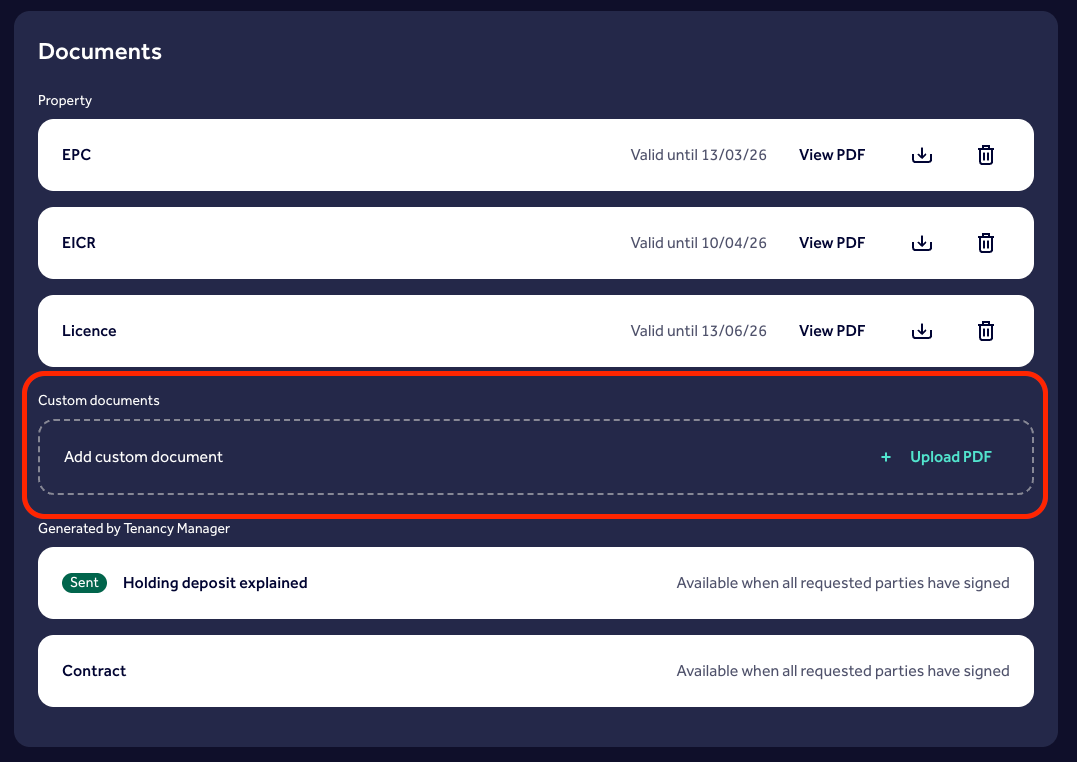
1. Go to the Documents tab in Tenancy Manager and find the "Custom Documents" section.
2. Click "Upload," select a PDF file under 25MB, enter a document name, and confirm the upload. Repeat for up to three documents.
3. You can preview, download, or delete documents before sending.
4. Once all required documents are uploaded, go to the Agreement tab and click "Send Documents." Custom documents will be sent in a separate email to tenants.
What file types can be uploaded as custom documents?
Only PDF files are supported.
What is the maximum file size for each document?
Each file can be up to 25MB. Larger files must be compressed before uploading.
How many custom documents can be uploaded per tenancy?
Up to three custom documents can be uploaded and sent. This is to avoid exceeding email attachment size limits for common email clients.
Can custom documents be deleted or replaced before sending?
Yes, agents can delete uploaded documents and add new ones before sending. Agents can also delete documents after they are sent, but at this stage they wouldn’t be able to upload new documents.
Are custom documents sent together with mandatory documents?
Custom documents are sent at the same time as the mandatory documents, but they are sent in a separate email from the mandatory documents.
Is an expiry date required for custom documents?
No, expiry dates are only required for mandatory property documents.
How are custom documents tracked?
The audit trail logs the sending of both mandatory and custom documents, including their names.