
This article will detail how to find, access and best use the Property Performance Report in Rightmove Plus.
- What is the property performance report?
- How do I access the report?
- What does the 'health' column mean?
- What does the report count as 'similar listings'?
- How can I improve my property's performance?
- How far back does the data go?
- The Property Performance AI Summary
What is the property performance report?
The Property Performance Report in Rightmove Plus helps you understand how your property listings are performing over time, compared to similar properties on the market.
It brings key data together so you can:
- Track interest in your property views
- Compare performance against similar listings in your area
- Identify ways to help improve your listings and attract more enquiries.
How do I access the report?
1. Log into Rightmove Plus
2. Select the main menu (top left-hand side of the screen)
3. Select Reports
4. Select Property Performance Report
What information does the report show?
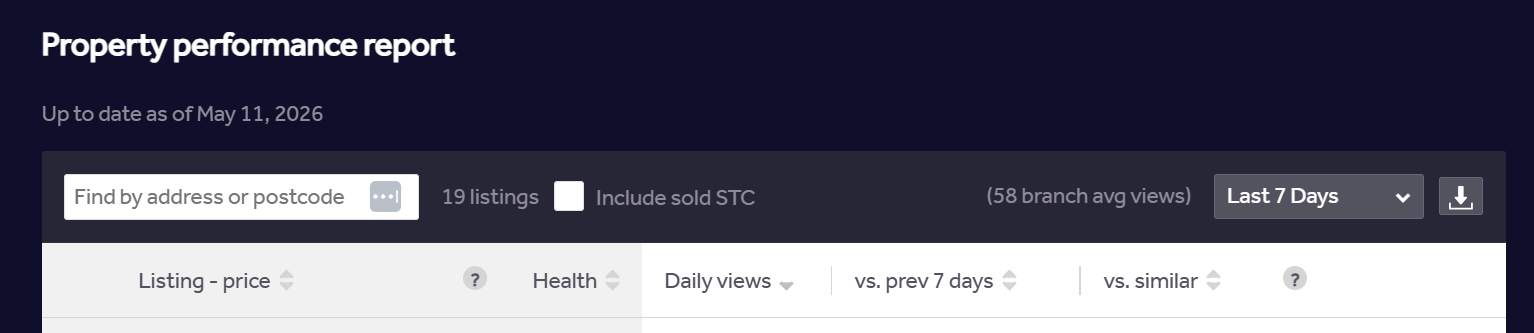
Table View
- The table view shows a summary of all the properties currently live under the branch you're viewing in Rightmove Plus
- You can change the data to show in the last 7 days, 14 days or 30 days using the drop down in the top right-hand side of the table
- The table details the average daily views (clicks) each listing has received for the time period you've selected
- It compares the average daily views to the previous time period (e.g. the last 7 days vs the 7 days previous)
- It also compares the average daily views to similar listings in the area
- You can export this report into an excel format using the export option to the right-hand side of the time period drop down.
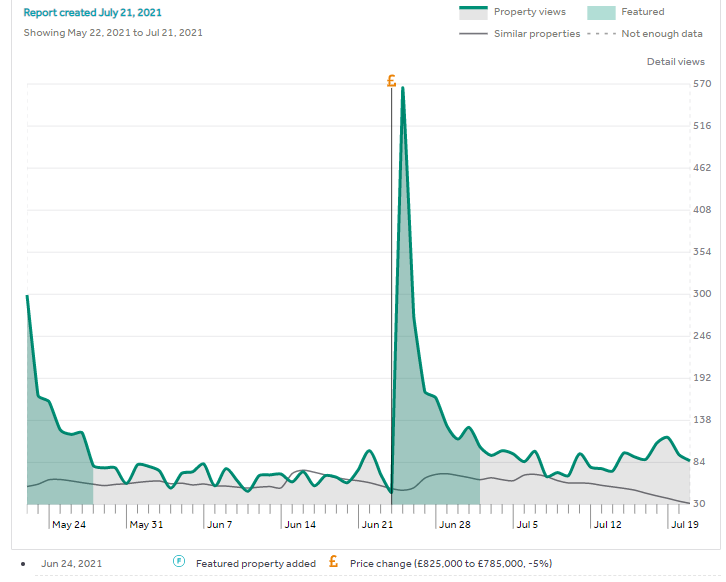
Graph View (Marketing Report)
- If you click into a specific property from the table via the graph icon on the right-hand side, you'll enter the graph view
- This will show the engagement in a visual format over time, including key events such as adding a Featured Property or Premium Listing
- You can customise what shows on the graph using the tick boxes at the top of the report.
What does the 'health' column mean?
- The 'health' column takes into account things like number of photos and floorplans to give you an indication of how your listing is performing against best practice
- The orange alert symbols highlight areas where a listing could be improved. For example, missing a floorplan
- This gives you a quick indication of how to improve performance.
What does the report count as 'similar listings'?
The logic for similar listings will include properties that:
- Are in the same area (same outcode)
- Have a similar number of bedrooms (+/- 1 bedroom)
- Fall within a similar price range (+/- 10% for sales, +/- 15% for lettings)
- Student properties are compared to other student properties only.
How can I improve my property's performance?
Depending on the insights that the report gives you, you can consider:
- Adding high quality images and floorplans
- Rotating the images regularly so the first photo is different
- Reviewing pricing and positioning against similar properties
How far back does the data go?
The data in the Property Performance Report goes back 120 days from when the Property was first listed.
If you've archived the property , as long as we have the old property ID we can get the summary views, detailed views and number of leads received as raw data if you contact customersupport@rightmove.co.uk.
However, we can only do this for sales properties, not lettings.
Can I share a report with my vendor?
Yes - from the Marketing Report, you can use the text boxes at the top to prepare a message if you wish, then click on the 'email' icon and enter an email address to send the report to. You can also click a tick box to send a copy to your branch email as well.
This report will come from autoresponder@rightmove.com.
The Property Performance AI Summary
We've released a new tool that enables you to generate an AI summary of a property's performance in Rightmove
At the moment, this is available to all membership types excluding those with Commercial or Overseas memberships. The summary will also only able to be generated for available properties (i.e. those not marked as Sold STC/Let Agreed). To use this feature, head to the Property Performance Report and click the sparkle button next to a property to generate your summary: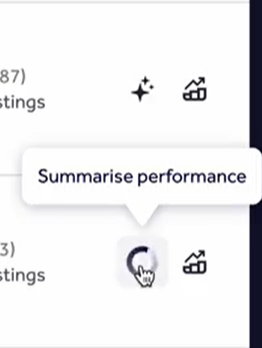
I have experienced an error or have feedback
Provide customersupport@rightmove.co.uk with information on your query so we can help.