
This FAQ explains how company reports view works to help you track market share performance across multiple brands and branches. It covers who can access the reports, how they work, and what you’ll see once you’re inside the report.
- What is Company View?
- Who can access Company View
- If you need this access contact customersupport@rightmove.co.uk so we can set this up.
- What you’ll see when you open Company View
- Creating a new Company Report
- What data the report shows
- Report features
- If you experience an error or have feedback
What is Company View?
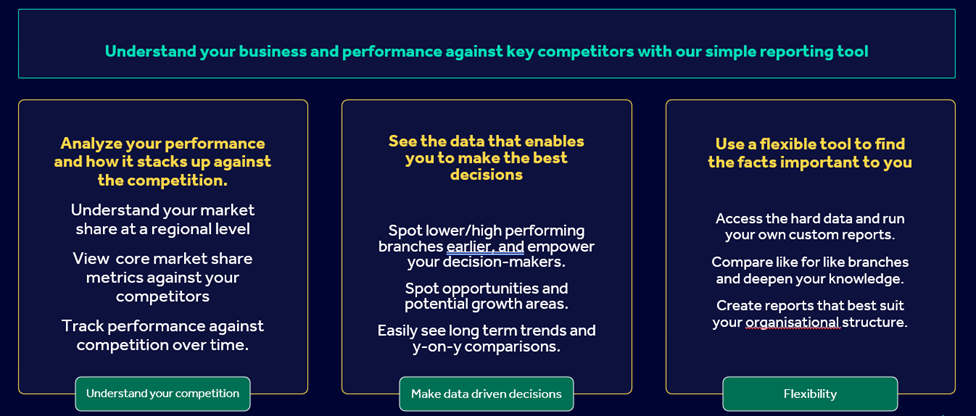
Company View (also called Company Reports) allows users in larger, multi‑branch agencies to see Market Share data across their whole company, rather than one branch at a time. The data shown is the same Market Share data used in standard reports.
Company View is designed to:
- Make it easier to track performance across multiple branches
- Compare branches against each other
- Monitor trends over time
- Create saved reports for specific brand or branch groupings
Who can access Company View
Only users who are set up as Company Report Users can access Company View.
Access is typically given to Senior leaders in multi‑branch businesses.
If you need this access contact customersupport@rightmove.co.uk so we can set this up.
Once you have been added as a Company Report User:
- Log in to Rightmove Plus
- Click your company name in the top‑right hand corner
- Select Office List
- From the Office List page, select Company View
This takes you into the Company Reports area.
What you’ll see when you open Company View
From the Office List page, selecting Company View will take you to Company Reports.
From here, you can:
- View existing saved reports
- Create a new report
- Rename or delete reports you no longer need
Creating a new Company Report
When you select Create a new report, you will:
- Choose the brand or brands you want to include
- Select the branches you want included in the report
- Review a summary of your selections
- Name your report
Important to know:
- Each report name must be unique
- If you try to use a name that already exists, you’ll see an error message asking you to choose a different name
Once saved, the report will appear in your Company Reports hub for quick access in the future.
What data the report shows
Company View reports are available for:
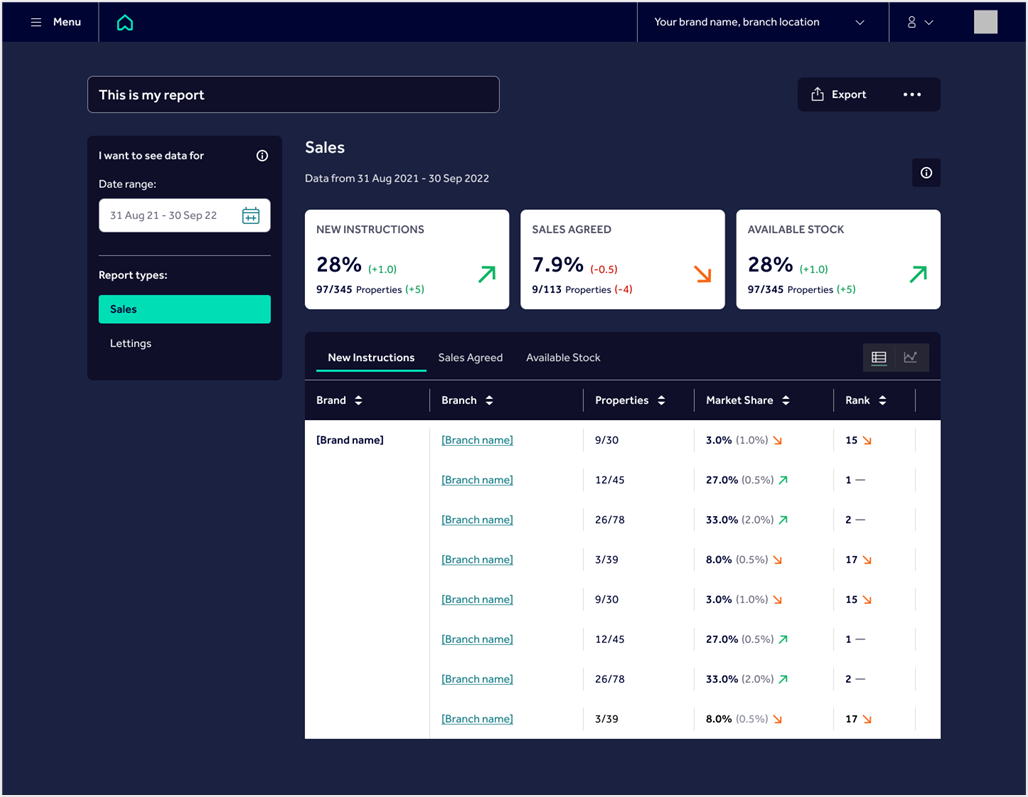
- Sales
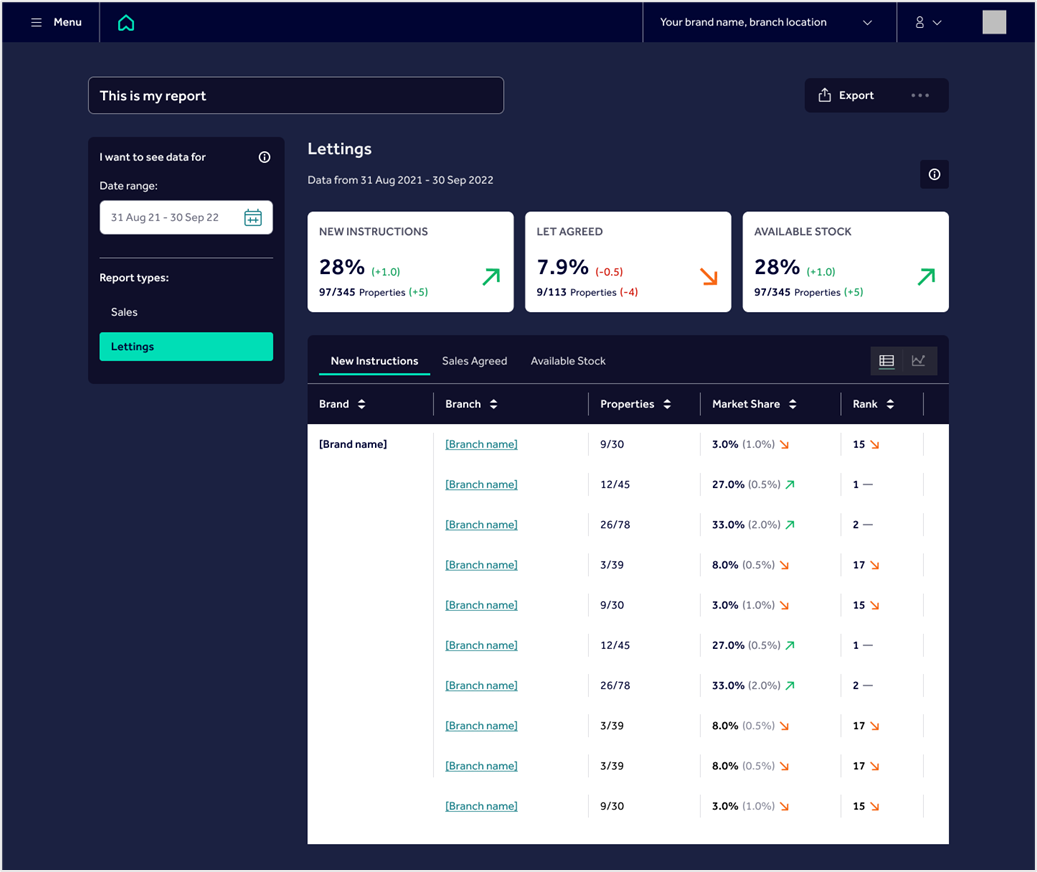
- Lettings
Each report includes:
- Headline market share figures
- Trends over time, helping you see performance changes
- Branch‑by‑branch benchmarking, so you can compare performance across your network
This makes it easier to identify:
- Strong‑performing branches
- Branches that may need support
- Changes in performance over time
Report features
Within a Company Report, you can:
- View summary pods with key metrics
- See a detailed data table
- Click through to an individual branch’s Market Share report
- Export the data as a CSV
- Rename the report
- Delete the report
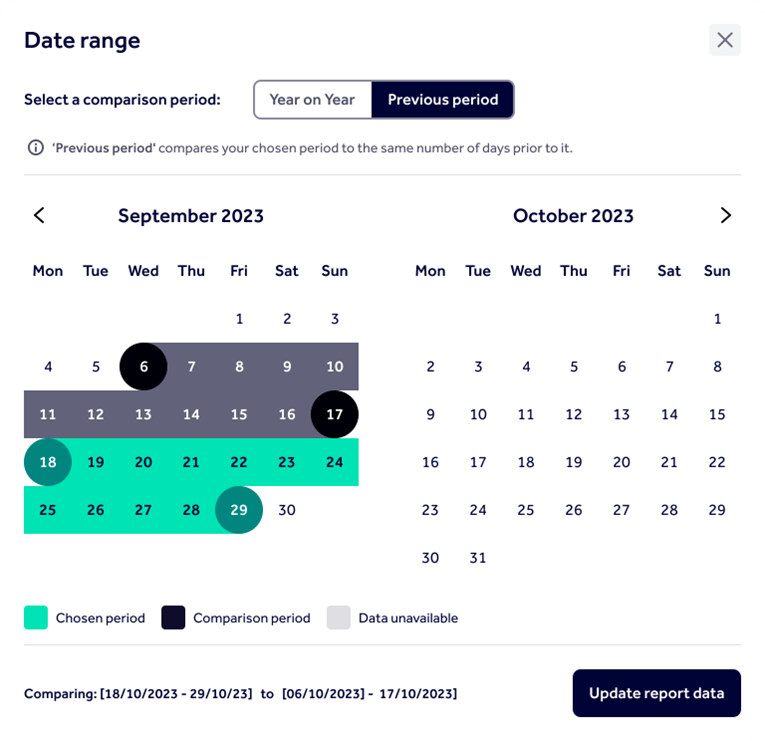
You can also change the date range, searching up to two years of data, using:
- Current period vs previous period (for example, last 7 days vs the previous 7 days)
- Year‑on‑year comparisons
If you experience an error or have feedback
If Company View isn’t working as expected, check the following:
- Confirm you have been added as a Company Report User
- Make sure you’re accessing Company View via Office List
- Check that the report name you’re using is unique
If the issue continues or you have feedback:
- Contact customersupport@rightmove.co.uk and include:
- Your name and account details
- The company, brand, and branch involved
- What you were trying to do
- Any error message shown