
- What is a Premium listing?
- Important
- How do I add a Premium Listing?
- What is a Flexible Premium Listing?
- Do Premium Listings expire?
- Want to purchase a Premium Listing?
What is a Premium listing?
Premium Listings provide enhanced property promotion across Rightmove, helping your property attract more attention in search results.
Key benefits include:
- Highlighted key property features
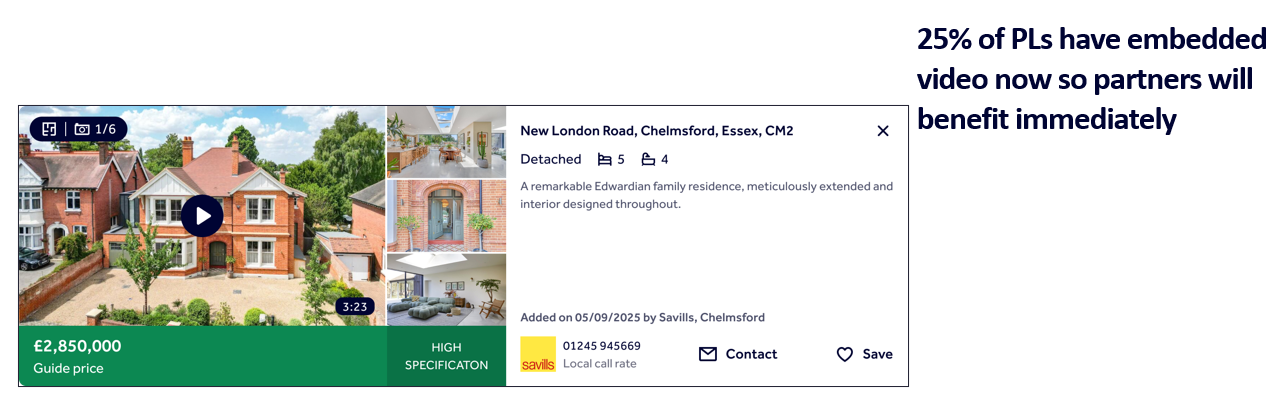
- More prominent video tours (where an eligible YouTube, Vimeo or Watchvideo link is provided)
- Increased visibility on map searches
- Branded enquiry cards for additional brand exposure
Updated Premium Listings
Premium Listings have been enhanced to help properties stand out more clearly and showcase important information earlier in the property search journey.
The enhancements are designed to:
- Improve property visibility
- Highlight key selling points earlier
- Support stronger marketing conversations with vendors
- Increase engagement with your listings
Can I opt out of the new features?
No. The enhancements form part of the Premium Listing product and cannot be switched off individually.
When are the enhancements available?
The enhancements are now live across desktop and mobile web. App support will follow.
Do the enhancements apply to Featured Property?
No. These enhancements are currently exclusive to Premium Listings.
Key Features
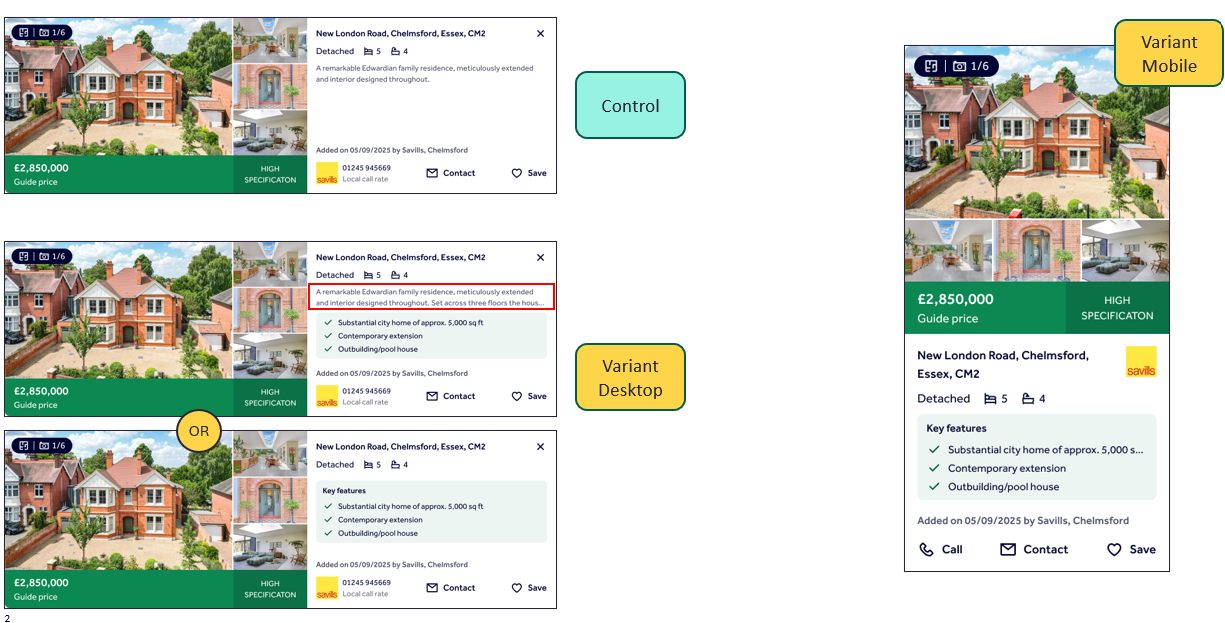
Premium Listings can display up to three key property features directly on the listing card, helping home-movers identify important selling points at a glance.
The first three key features from the Property Details Page will be displayed automatically.
Making the most of key features
Use specific selling points rather than information already shown elsewhere on the listing, such as bedroom or bathroom counts.
Examples include:
- South-facing garden
- Recently renovated kitchen
- Driveway parking
- Close to a station
Can I choose which features appear?
Yes. The first three key features entered on the Property Details Page will be shown. Update the order of your key features if you would like different information displayed.
Video on Premium Listings
Supported video providers
- YouTube
- Vimeo
- Watchvideo
Other video formats will continue to open externally.
How can I make the most of this feature?
Upload your video to YouTube, Vimeo or Watchvideo and add the URL to your listing via your CRM.
Key information
- Videos autoplay muted.
- Autoplay duration is up to 30 seconds.
- The property's first photo remains the primary image.
- Landscape videos provide the best viewing experience.
- 360° tours and virtual tours do not replace video content.
Maps
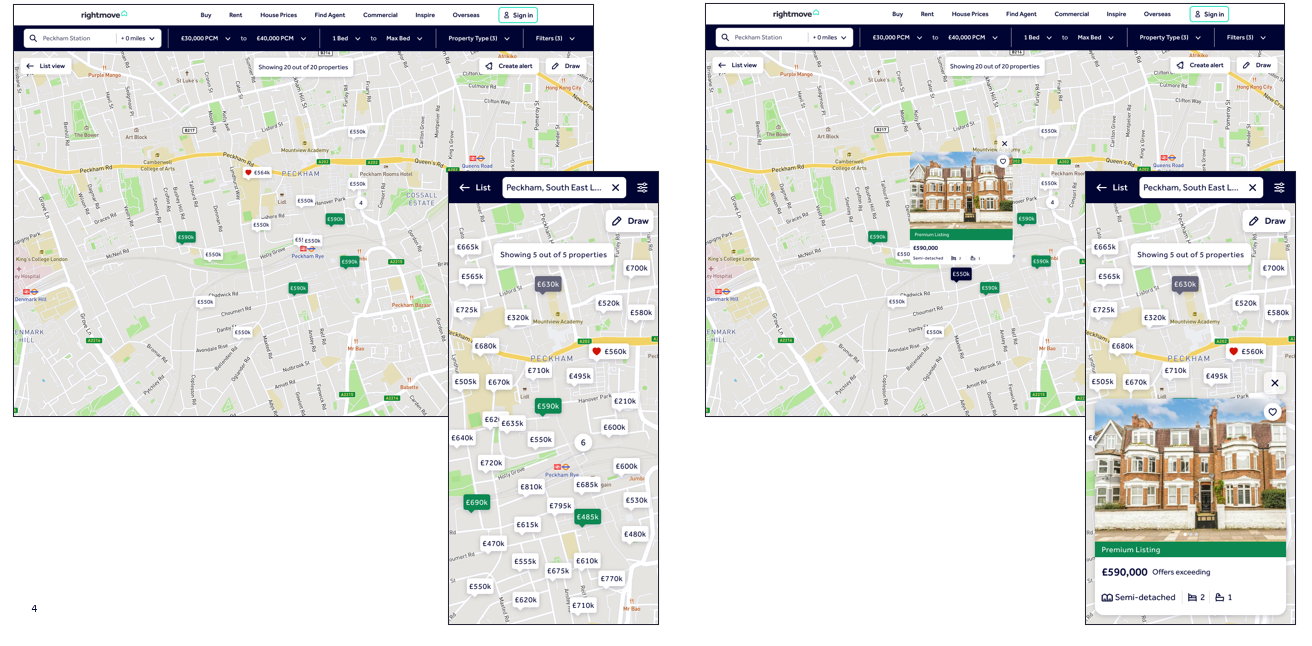
When a home-mover views properties on a map, Premium Listings are highlighted and display the Premium Listing card, including sticker text.
Top tip
Use sticker text to promote the property's strongest selling point, as this may also be visible in map results.
Branded Enquiry Cards
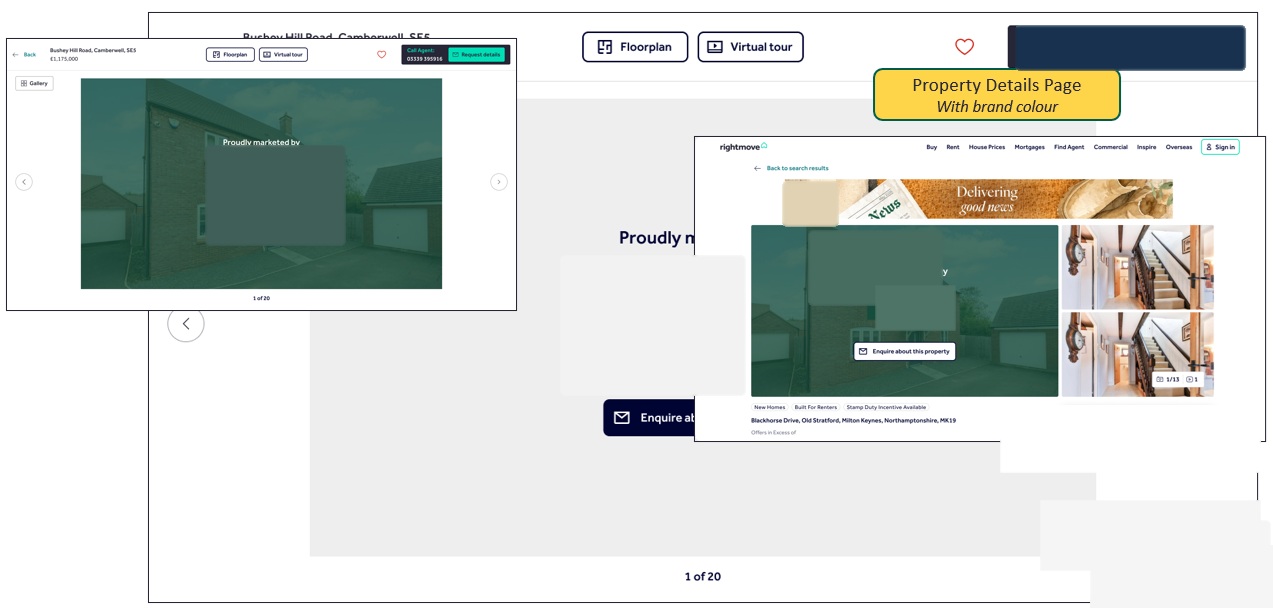
The card can use:
- Your branch logo
- Your brand colour (configured in Branch Marketing within Rightmove Plus)
- The property's primary image
If no brand colour has been configured, a default colour will be used.
Top tip
Review your Branch Marketing settings in Rightmove Plus to ensure your brand colour is up to date.
Important
Premium Listing credits can only be applied to properties that are live and available.
Credits cannot be applied to properties marked:
- Sold STC
- Under Offer
- Let Agreed
How do I add a Premium Listing?
1. Log into your Rightmove Plus account.
2. Click on the 'properties' tab found on the menu on the left-hand side of the page.
3. Select the 'premium listing' tab.
4. Press '+ Premium List a property' to bring up a list of available properties that can be premium listed.
5. Click the tick boxes next to any available properties. Use the drop down to select a sticker text.
6. Select 'add' at the bottom to apply the credit(s). Rightmove Plus will confirm before clicking the 'add' button what the credit balance will be after applying.
You can also edit the premium listing sticker on current premium listings by selecting the 'edit' option next to each sticker text.

Then either 'Confirm' or 'Cancel' the change. Learn more about how to add a premium listing by watching a 'how to' video on Rightmove Hub.
If you are missing the premium listing tab option in your menu in Rightmove Plus, you can request your admin to edit your access. Learn about how to get your permissions updated here.
What is a Flexible Premium Listing?
Flexible Premium Listings are like normal Premium Listing, except credits can be removed from a property and re-used on another listing (like a Featured Property Box). This is a lettings only product.
You can purchase these in 'Slots' from your account manager. You can choose the below rotation settings for the slots:
- Automatically premium list new properties (listed for 28 days or less)
- Rotate through a pool of selected properties (rotating every 1, 3 or 7 days)
- Select one property per slot (no rotation)
Do Premium Listings expire?
Yes they do, see the expiry details below:
| Unused Credits | 6 months |
| Sales Properties (once applied) | 365 days |
| Lettings Properties (once applied) | 2 months |
Want to purchase a Premium Listing?
Premium Listings are credits and 1 credit can be used for one property only. You can purchase these as one-off credits or monthly subscriptions, where your credits top up at the beginning of each month.
If you would like more information on purchasing a premium listing, contact your account manager for details.
If you're not sure who your account manager is, you can schedule a meeting with your account manager using the Rightmove Hub link here.
See the document below for guidance on premium listing sticker texts that are available to choose for sales and lettings.
If you need to report an error with your premium listing credits or have feedback like adding a sticker text option contact our customer support team.