
We have launched a tool in Rightmove Plus (RM+) that helps you manage your permissions under your own Rightmove Plus account.
Non user admins can view their personal info and request permission changes from their user admin.
It can be accessed by logging into Rightmove Plus, select your initials found in the top right-hand corner and selecting 'My Profile':

Once the 'My Profile' tab has been selected, a pop up tab will appear that looks like the below:
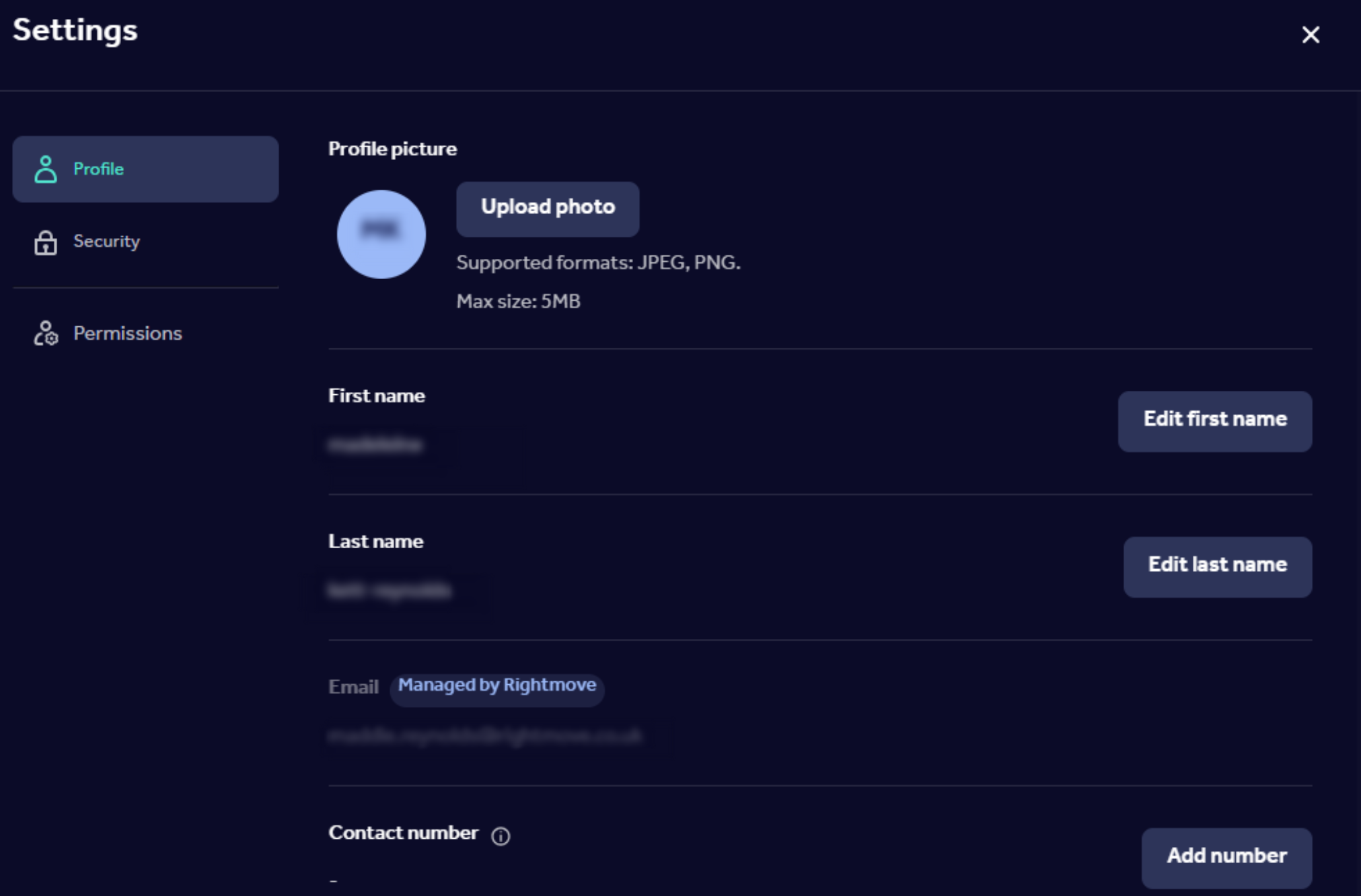
Learn more about what can be updated in the 'My Profile' section below:
Updating your profile details.
Under the 'profile' tab, you can update details such as your profile pic, first and last name, job title and focus area (sales/lettings).
Currently, you can't update your own email under this section, however, if you do need to change your email, you can request your branch admin to delete your email and re-add you in User Management.
Under the 'security' tab, you have the option to update your password here.
After selecting the 'security' tab, click 'edit password', enter your email and then press the 'request new password' button. An email will then be sent to you within instructions on how to create a new password.
Viewing and Updating your permissions.
To view your permissions or request changes, go on 'My Profile', and then click on 'Permissions'. Here you will be able to see a list of permissions currently available in this tool.
To request access to a permission, follow the steps below:
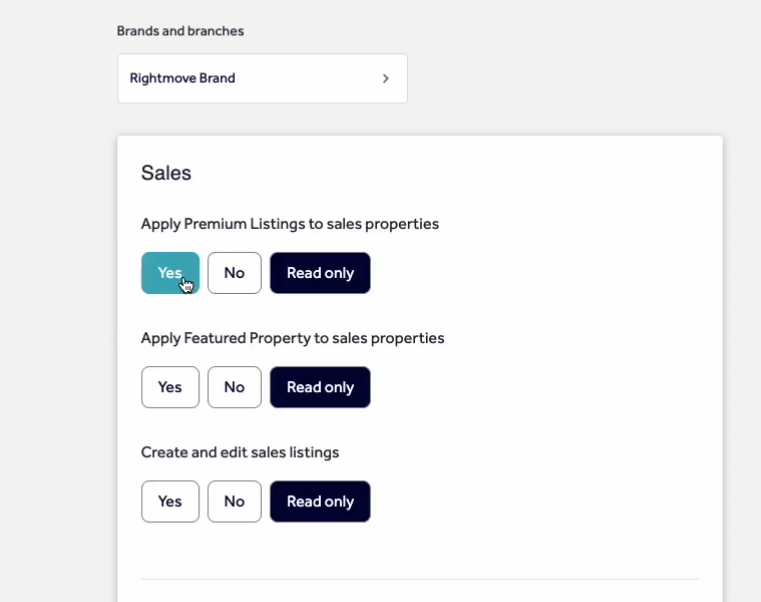
1. Select 'yes' next to the desired permission, as shown below:
2. Once you've selected the necessary permissions, click 'review change' at the bottom:
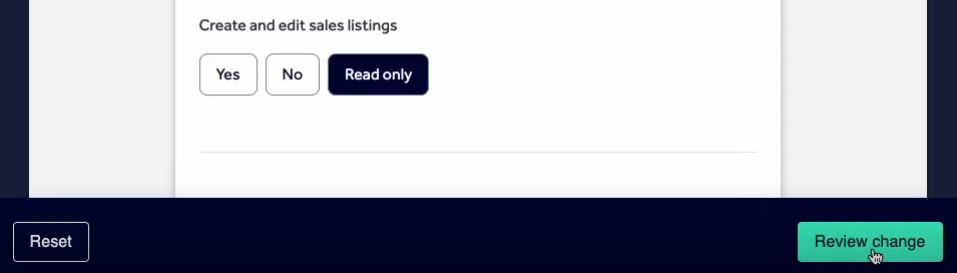
This will then take you to the final page.
3. Review the permission changes request and if accurate, click 'request change':
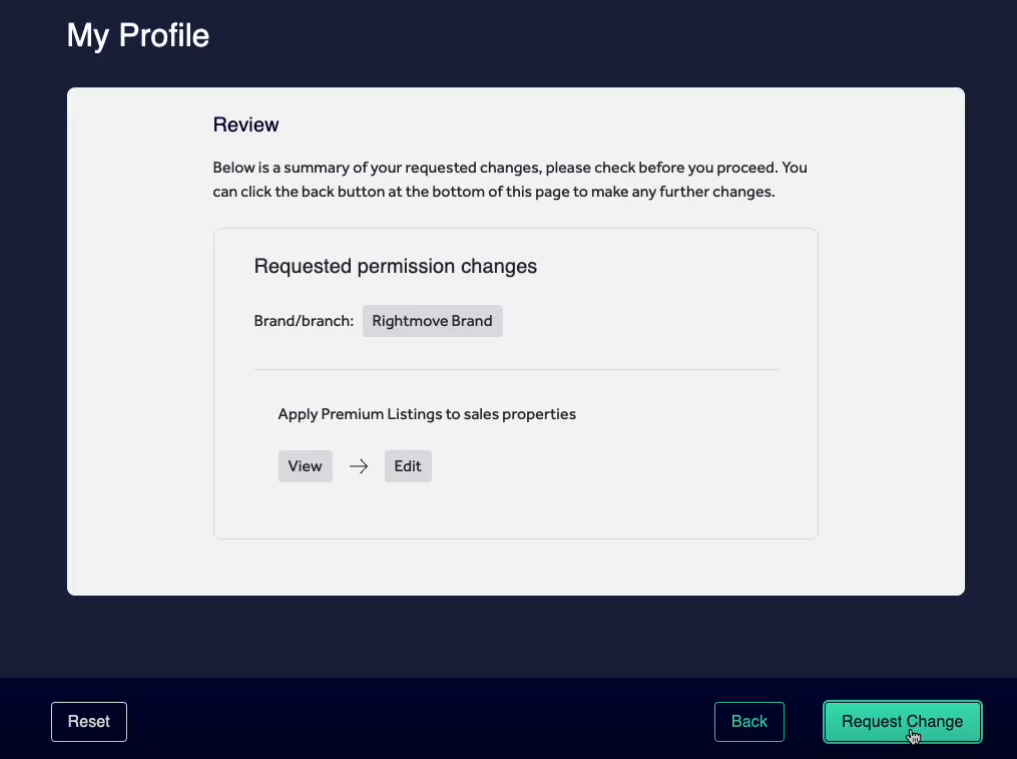
Once you have submitted your permission request, this will be sent to your user admins for your branch.
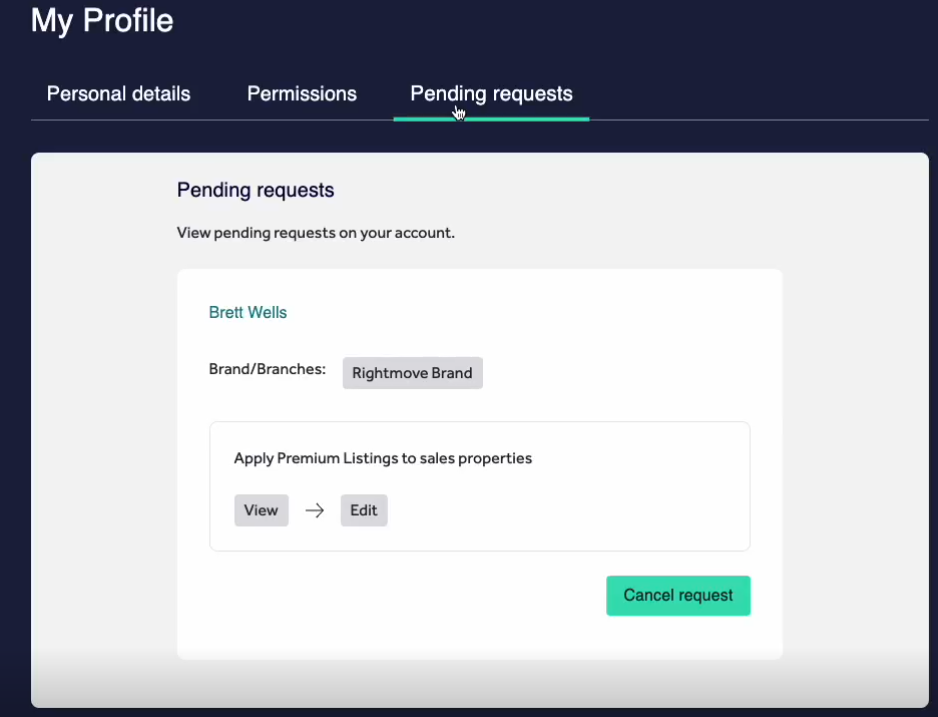
You can review your pending requests in the third tab and this will update once the request has been approved or declined, you will receive an alert once your request has been reviewed.
You can view who your admin(s) are by heading to your initials on the top right hand corner then selecting ‘My Profile’ in the main menu and clicking on the ‘User admins’ tab.
If you have admin permissions on RM+, you will start to receive these permission requests via your Rightmove Plus account. You will be notified when you receive these requests.
In your User Management feature, you will have a 'requests' inbox in the right hand corner of the homepage.
To action these requests, go to the 'User' tab, and click on the 'requests' tab. Click on the tick or cross to accept or decline the permission request. Once this has been completed, the requester will then be notified.