To help you make the most of our market share reports, you can find our helpful guides and video tutorials on the Rightmove Hub here.
Learn about the Market Share Reports available using the FAQ page here.
- Where to find the Market Share Reports.
- Filters
- Changing Views
- How to print, email, or download the reports.
Where to find the Market Share Reports.
To find the Market Share Reports in Rightmove Plus, follow the steps below:
1. Log in to Rightmove Plus
2. Click the 'Reports' tab
3. Select the 'Market Share' tab.
4. Choose the necessary Market Share Report.
Filters
After selecting the Market Share Report you want to use, apply the available filters to refine your search
On the filters section, you can update the date range, postcodes, price range, bedroom amount, property types, and resale/new build properties:
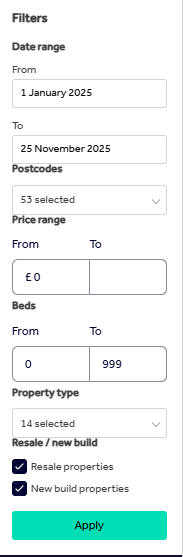
On the postcode section, you can add custom postcodes that aren't included within your 'default' patch:
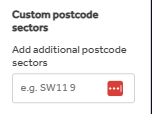
You can learn about editing your 'default patch', using the Patch FAQ page here.
Changing Views
When using the Market Share Reports, you can switch from Pie Chart view to Table view. See the screenshot below for reference:
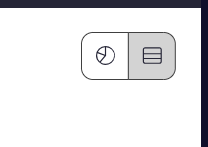 On the Pie Chat view, you will be able to see the branch total stat, where if you click on the Table view, you will be able to see each individual property that has been included in your stats.
How to print, email, or download the reports.
To email or print the Market Share Report, you can select either of the options below:
To download the property, select the 'print option', and then you can change the 'destination' from print to 'save as PDF'.
These reports must not be shared externally. If there is a 'print certificate' option on the Market Share reports though, the certificate itself can be shared externally.